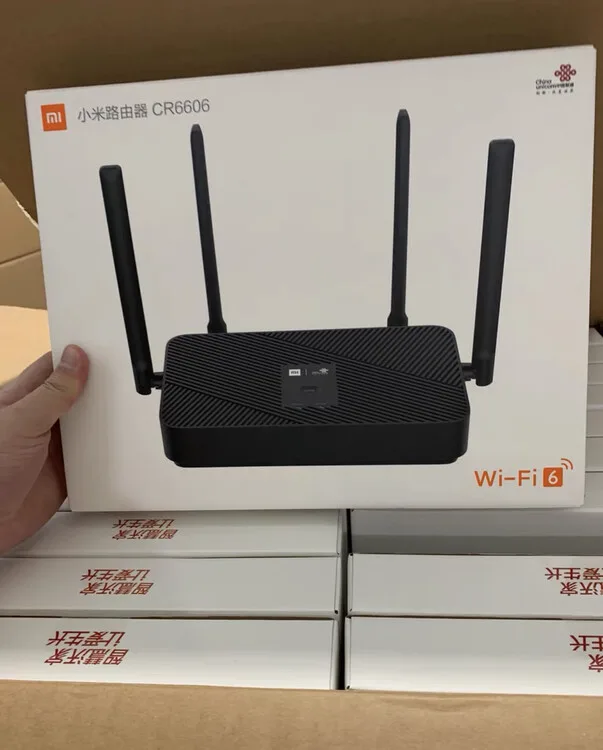
Xiaomi WR30U front — not CR6606
TTL serial, U-Boot, and opening the device are advanced paths. First confirm whether standard Web or TFTP recovery still applies.
This is an advanced serial-recovery reference for Xiaomi WR30U, not CR6606. Confirm the hardware revision, installed U-Boot and partition layout before opening the device. Prefer documented Web or TFTP recovery when available. Unverified partition-write commands have been withdrawn; this is not a ready-to-run bootloader repair recipe. Router Recovery does not perform TTL, U-Boot writes or hardware repair; it only prepares the Mac-side TFTP Server when applicable.
Xiaomi WR30U front — not CR6606
Before you start, confirm these parameters match the device, firmware file, and recovery flow.
| Compatible model | Xiaomi WR30U only — not CR6606 |
|---|---|
| Recovery method | TTL serial + U-Boot Web recovery or TFTP |
| U-Boot recovery IP | 192.168.31.1 |
| Computer static IP | 192.168.31.254 |
| Common failure causes | Wrong TTL wiring, wrong serial settings, failed Kermit transfer, wrong computer IP or firewall settings |
If the router can still enter Web recovery, vendor recovery, or standard TFTP recovery, try those paths first. TTL serial is for cases where network recovery is unavailable, U-Boot needs repair, or you can confirm the ordinary recovery window no longer works.
Use this only when standard Web/TFTP recovery is unavailable. Confirm the risk before preparing hardware, serial access, and U-Boot files.
First confirm that standard recovery is unavailable. Serial logs can help identify the installed bootloader and failure stage. They do not justify replacing U-Boot without exact-device instructions and backups. This page does not provide a validated bootloader-writing procedure.
| Item | Specification | Purpose |
|---|---|---|
| USB-to-TTL Module | CH340G/CP2102, 3.3V logic | Connect computer to router serial port |
| Jumper Wires | Female-to-female or male-to-female | Connect to TTL pins (insert stripped wire into through-hole) |
| Ethernet Cable | Standard cable | Connect computer to router LAN port |
| Plastic Pry Tool | Credit card or dedicated tool | Open case (screwless version) |
Before entering the TTL path, confirm that ordinary recovery mode, Web recovery, or standard TFTP recovery is unavailable. TTL is not the first step for ordinary users.
Some WR30U versions have no screws on the bottom — they use pure snap-fit design. Start from the top cover:
| Step | Action |
|---|---|
| Inspect | Check the bottom of the router — confirm no rubber feet or screw holes |
| Pry open top cover | Insert plastic pry tool/card into the seam along the top cover edge. Slide around slowly to release each snap (listen for clicks) |
| Tips if tight | Use a hair dryer on low heat to warm and soften the plastic edge. The network port side or vent holes side are easiest to start from |
| Remove cover | Once all snaps are released around the perimeter, lift off the top cover to reveal the mainboard |
Opening the device can damage clips, the shell, or the board, and may affect warranty. Continue only after standard recovery paths have been ruled out.
WR30U mainboard has 4 through-hole pads for TTL (no vertical pins installed). They're usually near the network ports or board edge.
| Pin | Description |
|---|---|
| 3.3V | Do NOT connect |
| TX | Connect to module RX |
| RX | Connect to module TX |
| GND | Must connect |
| WR30U Mainboard | USB-TTL Module | Note |
|---|---|---|
| GND | GND | Required |
| TX | RX | Cross connection |
| RX | TX | Cross connection |
| 3.3V | Do NOT connect | Prevents power conflict |
Wiring method: Strip the end of a jumper wire, insert into the through-hole pad, secure with hot glue or tape.
MT7981> prompt or Boot Menu appears (press 0 for command line)
Stop before partition writes. This page has not verified the FIP offset, length, image artifact or U-Boot write command for your device. Do not reuse offsets from another model, try a different layout after validation fails, or erase UBI as a generic fix. Obtain maintainer instructions for the exact build and device partition backups first.
Completing a serial transfer only places data in memory; it does not establish image compatibility or safe flash writes. If U-Boot is unavailable, seek exact-device recovery guidance instead of trying generic commands.
Web recovery availability, IP addresses and image type depend on the installed U-Boot and layout. Do not assume rebooting restores the network or write an arbitrary sysupgrade image as raw NAND data. If an image is unsupported, stop and verify its profile instead of experimenting with layouts.
Only when the exact-device instructions require the router to request a TFTP file can the app assist with the Mac network and firmware folder. It does not execute serial or partition-write commands.
Before any modification, identify and back up bootloader, calibration and device-identity data using the actual device partition map, and copy backups to another computer. Do not guess mtd numbers from another model. After recovery, verify the management address, authentication, ports and system version using the image documentation; a default IP or empty password is not guaranteed.
Stop TFTP and restore normal network and firewall settings when finished or paused.
Stop before partition writes. This page has not verified the FIP offset, length, image artifact or U-Boot write command for your device. Do not reuse offsets from another model, try a different layout after validation fails, or erase UBI as a generic fix. Obtain maintainer instructions for the exact build and device partition backups first.
Use these resources only after confirming that TTL / U-Boot handling is really required. Ordinary recovery should return to the standard TFTP/Web path first instead of jumping into forum experience and disassembly branches too early.
If standard recovery is still available, return to the router TFTP recovery path first. TTL is advanced reference material.
This tutorial is for learning and reference only. TTL, U-Boot writes, and firmware flashing are high-risk operations and may cause bricked devices, partition damage, or void warranty. Recovery depends on device version, bootloader state, firmware file, wiring, and commands. Before proceeding:
Last updated: April 2026